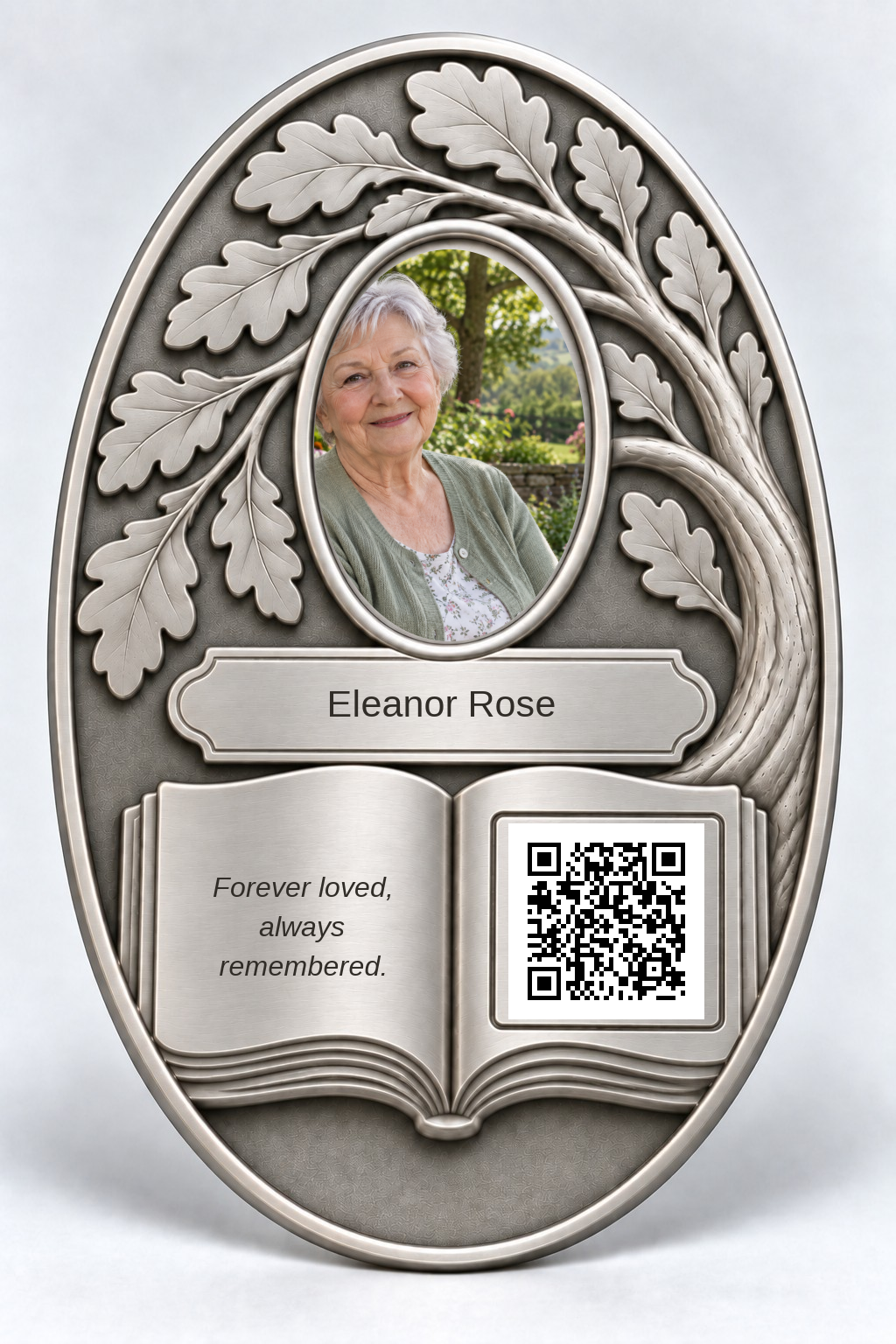
Think of the storybook as a family album with room for voices, recipes, stories, and connections across generations. The guide below explains what to add, where to add it, and what it can mean to your family. Optional sections are found under More memories and can be enabled in the Family area.
Your story for future generations
What would you like future generations to know about you?
Living family members can share a short introduction, their interests, values, or favorite memories, and up to two pictures on an optional small family-tree profile. Add your own information for bookkeeper approval, so your family can get to know you through your own words. Every field can be left blank. Explore the demo tree to see small profiles alongside complete linked storybooks.
Explore the connected demo familyLife story
Help future generations know the person behind the name: what they cared about, how they lived, and what made them unique.
What you can add
Childhood memories, family life, work, accomplishments, favorite sayings, and the small everyday details people remember.
How to use it
In the Family area, write their life story in your own words. Start with a few sentences and add more later. For example: “Grandpa loved fixing things and never let anyone leave hungry.”
Photos & videos
Let family see their smile, movements, celebrations, and everyday life. A short clip can show a personality in a way a photograph cannot.
What you can add
Portraits, old family photographs, birthday celebrations, wedding clips, holiday gatherings, a favorite hobby, or a video of them telling a story. Add descriptive titles and captions so younger relatives know who and what they are seeing.
How to use it
Choose Add photos or a video in the photo book. Select your files, optionally add a caption or memory, and send them for bookkeeper approval. Photo tools can scan printed photos, restore fading, improve clarity, or estimate colors for a black-and-white photo. Videos accept MP4, WebM, or MOV up to 50 MB. The Family area also supports video links.
Life timeline
Give visitors an easy way to follow the chapters of their life and understand when important memories happened.
What you can add
A birth, graduation, wedding, new home, military service, retirement, or a meaningful everyday milestone. Dates and a related photograph help tell each chapter.
How to use it
Add a timeline moment with a date or year and a description. Link a photo when you have one. You can begin with a few important moments and fill in the gaps over time.
Family tree
Help children and grandchildren understand where they come from, how relatives are connected, and whose stories belong to earlier generations.
What you can add
Relatives’ names, photos, relationship descriptions, and mother, father, stepparent, or spouse connections. A relative can be included even if they do not have a storybook page.
How to use it
Open the family tree to add relatives, choose Living or Deceased on their cards, and select two people to set their relationship. Use Connect another storybook to choose a relative’s book and join their trees. Books you manage connect immediately; another bookkeeper reviews connection requests for their book. A new book created from the tree connects automatically. Linked deceased relatives appear together on the bookshelf. Sharing a tree does not grant editing access to another storybook.
Family cookbook
Keep the taste of family gatherings alive. Grandchildren can make the same dishes, learn the stories behind them, and continue a tradition at their own table.
What you can add
Ingredients, quantities, cooking steps, helpful tips, a photo or scan of a handwritten recipe, and a memory about when it was served. For example: Grandma’s Sunday biscuits or the birthday cake she made every year.
How to use it
Open Family cookbook under More memories. Book keepers can add a recipe as a keepsake from the Family area: give it a title, write the recipe and its story, and optionally attach a photo or PDF. Explain any family shorthand so someone making the dish for the first time can follow it.
Voice & recordings
Preserve the sound of their voice—their laugh, accent, favorite phrase, or the way they told a story. A grandchild who never met them can still hear what they sounded like.
What you can add
A saved voice message, an interview, a bedtime story, singing, laughter, family advice, or a recording of them talking about their own life. Add who is speaking and when it was recorded, if known.
How to use it
Use the voice section under More memories, and add the recording as a keepsake through the Family area. Attach an MP3, WAV, OGG, or M4A audio file up to 25 MB and add a title and explanation. A video with their voice can also go in Photos & videos. Upload a recording you already have; the storybook cannot recreate an authentic recording of someone’s voice.
Letters, poems & favorite words
Keep their own words and the messages they left behind, so relatives can return to their advice, humor, and affection.
What you can add
Letters, poems, personal writing, favorite sayings, or a meaningful message. Include a typed version or a photo or scan when available.
How to use it
Choose the meaningful words section and add a titled keepsake. Explain who wrote it and why it matters. A familiar phrase can also be included alongside their main life story.
Documents & milestones
Keep important records beside the story they help tell, rather than leaving their meaning hidden in a box or folder.
What you can add
Certificates, awards, service records, newspaper clippings, letters, and other treasured documents. Add a description of what each item tells the family.
How to use it
Add a document keepsake with a title and description. Attach a PDF, JPG, PNG, or WebP file up to 25 MB. Choose public or family-only visibility, and check personal information before sharing.
Service & achievements
Remember the ways they contributed to their community, country, workplace, or family.
What you can add
Military service, volunteer work, a meaningful career, community roles, awards, or achievements they were proud of.
How to use it
Use the service section under More memories. Add a titled account of their contribution, with dates and a supporting image or document if available. Explain the meaning of an award or role for relatives who may not recognize it.
Hobbies, traditions & favorite places
Show the everyday things that made life theirs, and give future generations traditions they can carry forward.
What you can add
Gardening, fishing, music, handmade projects, holiday routines, family outings, a hometown, a favorite porch, or a place they loved to visit.
How to use it
Choose the relevant section under More memories and add a keepsake with a title, story, and optional attachment or link. Explain what the activity, tradition, or place meant to them—not just its name.
Memories & tributes from loved ones
Bring together different perspectives. A friend, sibling, or grandchild may remember a story that the rest of the family has never heard.
What you can add
Personal stories, affectionate memories, birthday or anniversary tributes, and suggested photographs, videos, timeline moments, or family connections.
How to use it
Visitors can submit memories for family review. Book keepers review and approve contributions before publishing them. Adding a contribution does not automatically make it visible to everyone.
Resting place
Help relatives and visitors find the place where they are remembered, including family members traveling from farther away.
What you can add
Cemetery name, address, plot details, location coordinates, and helpful visiting notes.
How to use it
Use the resting-place section to enter the location information. Check that the details and map point are correct before publishing them.
A life narrative to download or print
Turn the gathered information into a readable life story that can be shared with relatives or kept in a family album.
What you can add
The life story and memories already saved on the storybook. More accurate and meaningful details give the narrative more to work with.
How to use it
Use the storybook’s narrative button to build a draft from the saved information. Read it, make any corrections, and then download or print it. Review dates, names, and relationships before sharing the finished story.